Mimbo Pro is the original magazine theme, created in 2007 and updated for a modern internet. It takes your content and formats it in a structured way grouped by category.
Mimbo Pro
The original premium WordPress magazine theme.
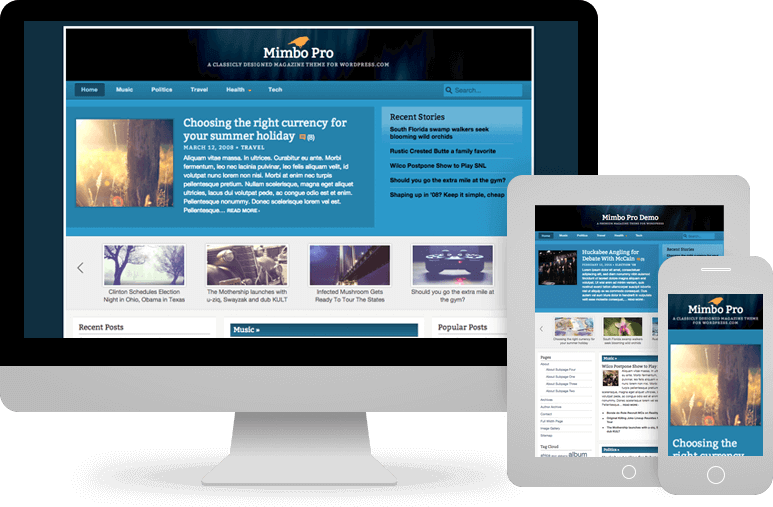
The original premium WordPress magazine theme.
Mimbo Pro is the original magazine theme, created in 2007 and updated for a modern internet. It takes your content and formats it in a structured way grouped by category.
Mimbo Pro is a magazine theme for WordPress. Unlike a traditional blog theme it takes your content and formats it in a structured way grouped by category. Using all of the standard WordPress functionality, custom headers, custom backgrounds, post thumbnails, custom navigation and more – Mimbo Pro makes your content look awesome.
Add portfolio items to your website, and even choose to use a custom homepage only displaying your portfolio – keeping your blog content separate.

This theme's code has been reviewed line-by-line by the WordPress.com developer team, meaning you can be doubly confident the code is solid, reliable and secure – and your website will be too.

Give your website's visitors easy access to your social media channels with a special social links menu.

Your website will look beautiful wherever it's viewed. Desktop, tablet or mobile – the responsive design adapts your site's layout to fit the screen size.

Image thumbnails for your blog posts and pages.
Search Engine Optimization to improve your sites rankings.
Change the design of your front page to make it exactly as you want.
Tweak the fonts and colours on your site without touching any code.
Resizes all of your images to fit the thumbnails used.
Edit the CSS on your website.
Add a simple contact form to your website or blog.
Image thumbnails for your blog posts and pages.
View your theme in your native language.
Display content, related to the current blog post, to give your readers something to look at next.
Display social buttons that encourage readers to share your content.
Different page layouts for static WordPress pages.
Edit site settings and get a live preview of the changes.
Show and hide widgets on different pages according to rules you set
Demo content to help you get started with your theme.
Keeping your users safe.
Mimbo Pro includes support for: Arabic, Belarusian, Chinese, Dutch, French, German, Hebrew, Indonesian, Italian, Japanese, Persian, Polish, Portuguese, Romanian, Spanish, Swedish, Turkish, mails
Secure payments by Fastspring



This is a subscription product which will renewal automatically each year. However if you decide to end your membership, you can cancel the renewal any time.
Our themes support WordPress privacy functionality, so are ready for GDPR, helping to ensure your users privacy.
Want to know more about the theme club? See our FAQ below or, if you still need help, you can ask us a question.
Joining the Pro Theme Design Theme Club gets you 12 months access to our WordPress theme library. This includes any new themes & plugins we may release.
You will also get 12 months of theme updates and support. Support is given directly by the developers of the themes.
We offer a 30 day money back guarantee, no questions asked. If there's a problem with the themes then please let us know and we will do our best to fix them!
Your site and theme will continue to work, however you will no longer receive theme updates or support. Unfortunately we cannot guarantee 100% compatability for all future versions of WordPress should you stop updating your themes.
A subscription means we can continue offering quality products for the long term.
By becoming a subscriber you allow us to continue to offer timely support, and give us the ability to continue updating themes, and creating new products.